If you’ve been searching for answers about iptv not working on wifi, you’re in the right place. This guide covers everything you need to know. We’ve put together a clear, up-to-date breakdown based on real testing and the most common questions US viewers ask in 2026.
Why IPTV Fails on Wi-Fi When Everything Else Seems Fine #
IPTV not working on Wi-Fi is one of the more frustrating troubleshooting scenarios because every other device on the network appears completely normal. YouTube loads instantly, websites open without delay, but live IPTV channels buffer or crash repeatedly. The reason lies in how live video delivery differs fundamentally from every other internet activity you do at home.
IPTV live streams require sustained bandwidth delivery of 5–25 Mbps depending on quality tier. The word “sustained” is what matters. Web browsing tolerates packet loss and speed variation gracefully—your browser retries, caches, and reorders packets without you ever noticing. Live video streams have no equivalent tolerance. A two-second bandwidth drop from 20 Mbps to 3 Mbps causes immediate buffering or a hard stream failure. Wi-Fi is the most variable segment of your home network, subject to interference, range limitations, and channel congestion that affect IPTV acutely while leaving lighter internet tasks untouched.
2.4GHz vs. 5GHz: Which Frequency Band Your IPTV Needs #
When diagnosing IPTV not working on Wi-Fi, the frequency band your streaming device is connected to is the first setting to examine. Most modern routers broadcast on both 2.4GHz and 5GHz simultaneously, and devices can connect to either—but they behave very differently for live video.
The 2.4GHz band propagates through walls and over longer distances better than 5GHz, but it has less available bandwidth and is heavily congested. Microwave ovens, baby monitors, Bluetooth devices, and every neighboring Wi-Fi network compete on 2.4GHz. In a typical suburban or urban environment, 2.4GHz is saturated.
The 5GHz band offers substantially more bandwidth and operates on far less congested spectrum, but its signal attenuates more rapidly through building materials. A device 30 feet away with two walls in between will see dramatically weaker 5GHz signal than 2.4GHz.
Practical rule for IPTV: if your streaming device is within 25 feet of the router with no more than one wall between them, connect to 5GHz. At that range, the bandwidth advantage easily outweighs the attenuation. Beyond 25 feet or with multiple walls in the path, 2.4GHz may actually deliver more consistent throughput even though 5GHz shows a higher peak speed at short range.
Channel Congestion: When Your Neighbors Are the Problem #
Even perfect signal strength doesn’t guarantee consistent IPTV performance if your Wi-Fi is broadcasting on a congested channel. This is a common cause of IPTV not working on Wi-Fi in apartments and dense residential neighborhoods—and it’s entirely invisible to most users.
On the 2.4GHz band, only channels 1, 6, and 11 are truly non-overlapping. Every other channel bleeds into adjacent channels, causing interference. Most routers default to auto channel selection, which sounds intelligent but frequently results in every router in a building choosing the same channel. When 15 neighboring routers all broadcast on channel 6, every device in range is sharing that channel’s capacity.
How to check congestion: install a Wi-Fi Analyzer app (Android) or use a laptop tool like NetSpot (Mac/Windows). These apps show every nearby network, what channel they’re on, and signal strength. Identify the least populated channel among 1, 6, and 11, then manually configure your router to broadcast 2.4GHz on that channel.
On 5GHz, far more non-overlapping channels are available: 36, 40, 44, 48, 149, 153, 157, and 161 are all viable. This is one reason 5GHz performs better in congested environments—there’s simply more spectrum to spread across.
Changing DNS Settings at the Router Level #
A surprisingly effective fix for IPTV not working on Wi-Fi that isn’t related to signal or congestion is a DNS change at the router level. Default ISP DNS servers often have high latency and occasionally misroute or slow-respond to IPTV stream URL lookups, causing authentication delays or timeout errors that manifest as connection or playback failures.
Changing DNS at the router level—rather than on individual devices—applies the change across every device on your network without requiring per-device configuration. The process:
- Access your router admin panel (typically 192.168.1.1 or 192.168.0.1 in a browser).
- Navigate to LAN settings or DHCP settings.
- Set the primary DNS server to 1.1.1.1 (Cloudflare) and the secondary to 1.0.0.1.
- Save and restart the router.
After the restart, all devices including your streaming device will use Cloudflare’s DNS. Cloudflare’s DNS is consistently among the fastest and most reliable globally, and it often resolves the IPTV stream lookup delays that ISP DNS introduces.
Mesh Networks, Wi-Fi 6, and IPTV Compatibility #
As mesh Wi-Fi systems become more common in American homes, a new category of IPTV not working on Wi-Fi problems has emerged. Mesh networks use multiple nodes that communicate with a main router over a backhaul connection—either wired or wireless. When a streaming device connects to a satellite node far from the main router, and that node’s wireless backhaul is congested or weak, IPTV suffers even though your device shows strong signal.
The fix: whenever possible, connect streaming devices to the main mesh router node rather than a satellite node. The main node has a direct wired connection to your modem and delivers full bandwidth. A satellite node relying on a wireless backhaul introduces an additional hop where bandwidth can be lost.
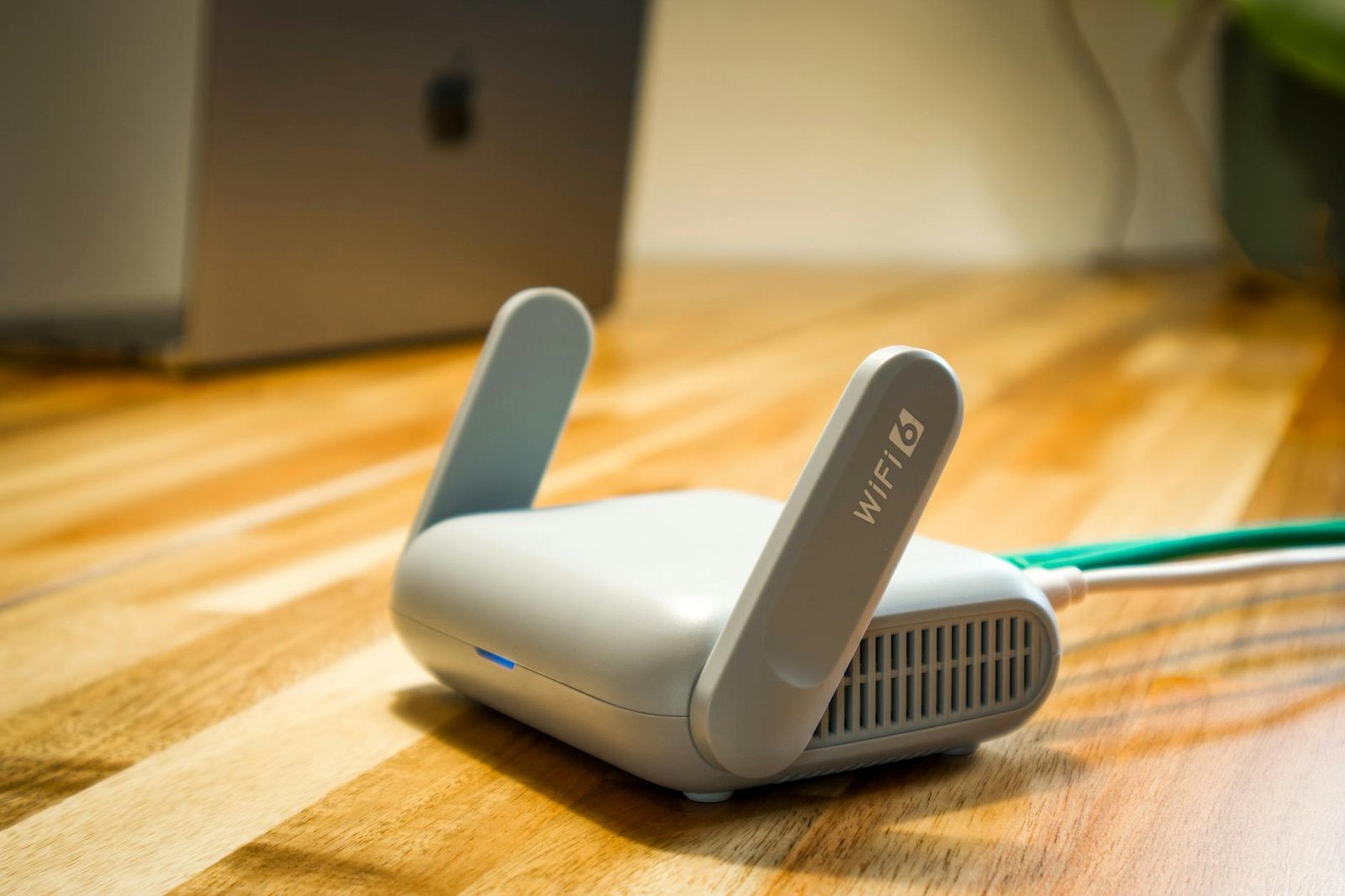
For new router purchases, Wi-Fi 6 (802.11ax) routers handle IPTV meaningfully better than Wi-Fi 5 (802.11ac) in congested environments. Wi-Fi 6 introduces OFDMA, which divides channels into sub-channels allowing multiple devices to transmit simultaneously rather than taking turns. In households with 10–20 connected devices, this scheduling improvement substantially reduces the latency spikes that cause live stream failures.
The Ethernet Adapter: Eliminate Wi-Fi as a Variable #
After working through frequency bands, channel congestion, DNS settings, and mesh topology, the most permanent and reliable solution to IPTV not working on Wi-Fi involves removing Wi-Fi from the equation entirely.
A USB-to-Ethernet adapter costs between $10 and $20 and is available for every major streaming device: Fire TV Stick, Chromecast with Google TV, Apple TV, Roku, and Android TV boxes. Plugging an Ethernet adapter into your streaming device and running a cable to your router or a wall switch bypasses every wireless variable simultaneously—interference, channel congestion, frequency band attenuation, range degradation, mesh backhaul congestion, and neighbor Wi-Fi competition all cease to exist as factors.
The performance difference in IPTV specifically is substantial. A wired connection delivers consistent, full-speed throughput with effectively zero packet loss. Even a router-rated 600 Mbps Wi-Fi connection at your device’s location may deliver only 150–200 Mbps in real-world conditions with occasional dips. A 100 Mbps wired Ethernet connection is steady and sufficient for any IPTV quality tier including 4K. For chronic IPTV Wi-Fi problems that survive every other fix, this is the correct permanent solution.
Related Guides #
Continue your research with these in-depth guides:
- IPTV Not Working? Complete Fix Guide for US Users (2026)
- IPTV Buffering Fix: Why It Starts Suddenly and How to Stop It (2026)
- IPTV Buffering During the Day: ISP Throttling, VPN & DNS Fixes (2026)
- IPTV Not Working on Firestick: 8 Fixes That Actually Work (2026)
- Iptv Without Buffering Usa
Frequently Asked Questions #
Why does IPTV work perfectly on wired ethernet but buffer or fail on Wi-Fi? #
Wired connections deliver consistent, full-speed bandwidth with zero interference. Wi-Fi introduces packet loss, speed variation, and interference that live video streams can’t tolerate. Even a ‘fast’ Wi-Fi connection may drop to 40% of rated speed for 2–3 seconds, which is enough to cause IPTV buffering.
Should I use 2.4GHz or 5GHz Wi-Fi for IPTV? #
5GHz if you’re within 20–25 feet of the router with no more than one wall in between. 2.4GHz if your streaming device is farther away or separated by multiple walls. In apartment buildings with high Wi-Fi density, 5GHz is almost always less congested.
What router settings improve IPTV streaming quality? #
Four settings make the biggest difference: (1) switch to 5GHz band, (2) set QoS to prioritize streaming devices, (3) change DNS to 1.1.1.1, (4) enable IGMP snooping if your router supports it. IGMP snooping reduces multicast traffic overhead which affects live-stream performance.
Will a Wi-Fi range extender help IPTV? #
A cheap Wi-Fi extender actually makes IPTV worse in most cases. Extenders halve bandwidth on the 2.4GHz band and create a separate network that devices may switch between mid-stream. A mesh system (Eero, TP-Link Deco, Google Nest) handles roaming properly and is worth the upgrade.
What is a good internet speed for IPTV on Wi-Fi? #
Sustained 15 Mbps at the streaming device handles 1080p HD reliably. 30+ Mbps covers 4K. The key word is sustained — not the peak speed test number but the floor during a 3-hour stream. Wi-Fi real-world throughput is typically 50–70% of the router’s rated speed at the device location.
Ce guide vous a-t-il aidé ?