
- East Coast (NY, NJ, CT, MA, PA): Mullvad New York or NordVPN New York — both maintain high-capacity servers with low peak-hour load
- Central and South (TX, IL, TN, GA, FL): NordVPN Dallas for Texas and South; NordVPN Chicago for Midwest — lower latency than East Coast servers for these regions
- West Coast (CA, WA, OR): Surfshark Los Angeles for California; NordVPN Seattle for Pacific Northwest
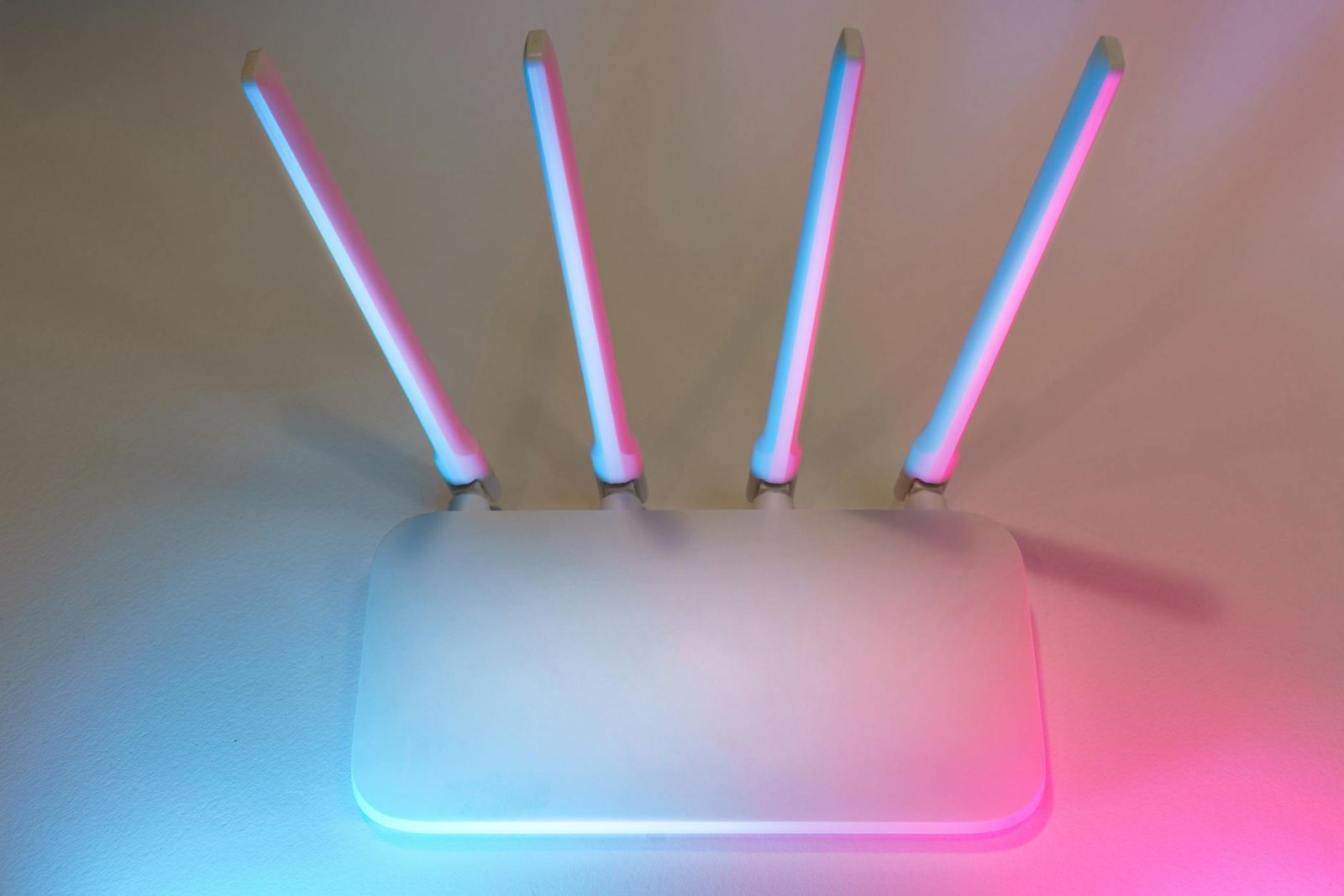
If you’ve been searching for answers about iptv buffering vpn dns, you’re in the right place. This guide covers everything you need to know. We’ve put together a clear, up-to-date breakdown based on real testing and the most common questions US viewers ask in 2026.
Daytime Buffering Pattern: What It Tells You About the Real Cause #
IPTV buffering that follows a predictable time-of-day pattern is not random. If your streams run perfectly at 3am, play smoothly at noon, and buffer every evening between 7pm and 11pm, you are not experiencing a hardware failure or a provider outage. You are experiencing deliberate ISP traffic shaping.
Internet service providers in the US use deep packet inspection (DPI) to identify live-streaming traffic signatures. Live streams generate a specific traffic profile: high-bandwidth, long-duration, sustained-rate connections that look nothing like web browsing or email. Once your ISP’s system identifies this pattern, it flags the traffic for deprioritization during peak hours when network congestion is highest.
This is why Netflix and YouTube may work fine while IPTV buffering vpn dns issues appear simultaneously — major streaming platforms have paid ISPs for peering agreements that protect their traffic. Independent IPTV streams don’t have these agreements and are often the first traffic type to get throttled when the ISP’s backbone becomes congested.
The weekend afternoon pattern is equally telling. Sunday afternoon during NFL season is peak congestion time for US cable ISPs. If IPTV buffering spikes every Sunday from 1pm to 5pm regardless of which provider you’re using, the ISP is the common denominator — not the provider.
How to Confirm ISP Throttling in 3 Steps #
Before spending time on a VPN or DNS configuration, run this three-step confirmation sequence. It takes under five minutes and gives you a definitive answer about whether your ISP is causing the IPTV buffering vpn dns problem.
Step 1: Speed test on the streaming device during buffering. Don’t use your phone or laptop — use the actual device running the IPTV app. Install a speed test app and run it while the buffering is happening. Record the result. Your baseline (non-throttled) speed should be close to your subscribed plan speed.
Step 2: Compare speed on mobile hotspot. Turn off Wi-Fi on the streaming device, connect to your phone’s mobile hotspot, and run the same speed test. If mobile data shows significantly higher speeds than your home connection during the same window, that gap is ISP throttling on your home network — not a hardware limit of the streaming device itself.
Step 3: VPN confirmation test. Enable a VPN on the streaming device while still on home Wi-Fi. Connect to a nearby US server and relaunch the IPTV stream that was buffering. If the buffering immediately stops or dramatically improves with VPN active, ISP throttling is confirmed. The VPN encrypts your traffic, hiding the live-stream traffic signature from your ISP’s DPI system, which removes the trigger for throttling.
DNS Server Changes That Reduce IPTV Buffering #
Your ISP’s default DNS servers resolve domain names but also route that initial lookup traffic through the ISP’s own infrastructure. For IPTV buffering vpn dns issues specifically, DNS can contribute to latency in stream authentication and in resolving the CDN or stream server addresses your IPTV provider uses.
Switching to Cloudflare’s DNS (1.1.1.1 and 1.0.0.1) or Google’s DNS (8.8.8.8 and 8.8.4.4) changes the resolution path, bypassing ISP DNS routing. This reduces stream-load latency by 20–80ms in most US markets — noticeable on live streams where the authentication and stream-start handshake happens in real time.
Important clarification: DNS changes alone will not defeat ISP throttling. Throttling happens at the traffic-shaping layer, not the DNS layer. DNS helps with routing efficiency, not traffic classification. That said, DNS is a free two-minute change worth making regardless — the combination of better DNS plus VPN addresses both routing inefficiency and throttling simultaneously.
Router-level DNS setup (recommended):
- Log into your router admin panel (typically 192.168.1.1)
- Navigate to WAN settings or DNS configuration
- Primary DNS: 1.1.1.1 — Secondary DNS: 1.0.0.1
- Save and restart the router — wait 2 minutes before testing
Device-level DNS (Firestick / Android TV):
- Settings > Network > Wi-Fi > hold your current network > Modify
- Switch IP settings from DHCP to Static
- Set DNS 1 to 1.1.1.1 and DNS 2 to 1.0.0.1 — save and reconnect
Setting Up a VPN for IPTV Traffic #
A VPN solves ISP throttling by encrypting your traffic end-to-end. When your ISP can’t identify the traffic type, it can’t apply traffic-shaping rules to it. This is why VPN is the most reliable fix for the IPTV buffering vpn dns pattern caused by ISP interference.
For IPTV specifically, protocol selection matters. Use WireGuard where available — it has 40–60% lower overhead than OpenVPN and 20–30% lower overhead than IKEv2. On a Firestick or Android TV box, this difference is meaningful because the processor is limited.
VPN setup on Firestick:
- Install your VPN app from the Amazon Appstore (NordVPN, Surfshark, and ExpressVPN are all available natively)
- Log in and select a server in your nearest US city
- Enable the kill switch in the VPN app’s settings before starting IPTV — this ensures that if the VPN drops, IPTV stops rather than continuing unencrypted through the throttled path
- Connect to the VPN server, then launch your IPTV app
Kill switch importance: without it, a momentary VPN dropout sends your traffic back through the ISP’s throttling layer, and the stream will buffer again. Most premium VPNs include a kill switch — verify it is enabled before testing.
Best VPN Server Locations for US IPTV Streams in 2026 #
Server location affects latency, and latency affects live-stream performance. For IPTV, you want the shortest possible path between your streaming device and the VPN server, not the largest server pool. Connecting to a server in a different time zone adds 30–80ms of unnecessary round-trip time, which accumulates into visible stream lag and increases the likelihood of IPTV buffering vpn dns issues recurring.
General rule: always connect to a VPN server in the same city or the nearest major city to your physical location. Use the load meter in your VPN app — any server above 70% load will degrade performance during peak hours.
Recommended server selections by US region:
- East Coast (NY, NJ, CT, MA, PA): Mullvad New York or NordVPN New York — both maintain high-capacity servers with low peak-hour load
- Central and South (TX, IL, TN, GA, FL): NordVPN Dallas for Texas and South; NordVPN Chicago for Midwest — lower latency than East Coast servers for these regions
- West Coast (CA, WA, OR): Surfshark Los Angeles for California; NordVPN Seattle for Pacific Northwest
Avoid free VPN servers entirely for IPTV. Free VPN providers oversell server capacity by large margins — the exact opposite of what live streaming requires.
Split Tunneling: Route Only IPTV Through the VPN #
Split tunneling lets you specify which apps use the VPN tunnel and which use your direct connection. For IPTV, this means your streaming app gets the throttle-bypass benefit of VPN while web browsing, email, and other apps run at full native speed without VPN overhead.
This configuration resolves a common complaint: “the VPN slows down everything on my Firestick.” With split tunneling enabled, only the IPTV app routes through the VPN. Everything else runs directly, eliminating any VPN-related slowdown for non-streaming use.
Enabling split tunneling for IPTV:
- ExpressVPN: Settings > Split Tunneling > Enable > Add TiviMate / IPTV Smarters Pro to the “use VPN” list
- NordVPN: Settings > Split Tunneling > turn on > Apps that use VPN > add your IPTV app
- Surfshark: Settings > VPN Settings > Bypasser > Route via VPN > add your IPTV app
After enabling split tunneling, verify the configuration works: launch your IPTV app and check that the VPN dashboard shows active traffic. Then open a browser on the same device — the browser should show your real IP, not the VPN IP. That confirms the split is working correctly and only IPTV traffic is tunneled through the VPN.
Related Guides #
Continue your research with these in-depth guides:
- IPTV Buffering Fix: Why It Starts Suddenly and How to Stop It (2026)
- Iptv Vpn Setup Usa
- Do You Need a VPN for IPTV? Honest 2026 Guide for US Streamers
- IPTV Not Working? Complete Fix Guide for US Users (2026)
- IPTV Not Working on Wi-Fi: Router Fixes and the $15 Wired Solution (2026)
Frequently Asked Questions #
Does changing DNS from ISP default actually fix IPTV buffering? #
DNS changes address routing inefficiency — they don’t defeat deliberate ISP throttling. If your ISP is actively throttling live-stream traffic, DNS alone won’t fix it and you’ll need a VPN. That said, switching to Cloudflare (1.1.1.1) takes two minutes, costs nothing, and reliably reduces stream-resolution latency by 20–80ms compared to ISP-provided DNS in most US markets. This matters for live streams that authenticate rapidly on every channel change. Do both: change DNS first, then add a VPN if buffering persists during peak hours.
Which DNS servers work best for IPTV in the USA? #
Cloudflare (1.1.1.1 and 1.0.0.1) consistently leads independent US speed tests for DNS resolution latency and is the recommended first choice. Google (8.8.8.8 and 8.8.4.4) is a reliable second option with near-identical performance. NextDNS and AdGuard DNS add content filtering and privacy controls but may block some IPTV-related domains if their filter lists are aggressive — test carefully if you use these. Avoid ISP-provided DNS for IPTV: their servers route traffic through the ISP’s own infrastructure, which is precisely the path that causes throttling and congestion issues.
Does a VPN slow down IPTV streams enough to matter? #
A quality VPN running WireGuard protocol adds 5–10% overhead in practice. On a 100 Mbps connection, that leaves 90+ Mbps available — more than enough for 4K IPTV streams (which need 40–60 Mbps) with headroom. The VPNs with the lowest overhead on WireGuard for US users in 2026 are Mullvad, NordVPN with NordLynx, and ExpressVPN with Lightway protocol. Free VPNs and older VPNs using OpenVPN TCP can add 20–40% overhead, which does noticeably affect stream quality on slower connections. If you’re on a 25 Mbps plan, use WireGuard specifically to minimize overhead.
What is split tunneling and should I use it for IPTV? #
Split tunneling routes specific apps through the VPN while all other apps use your direct connection. For IPTV, this means only your IPTV app (TiviMate, Smarters Pro, etc.) runs through the VPN tunnel, which gives it the throttle-bypass benefit. Everything else — web browsing, other streaming apps, downloads — runs at full native speed without VPN overhead. This is the recommended configuration for IPTV: you get the throttle fix without impacting the rest of your Firestick or Android TV’s performance. Enable in your VPN app’s settings under Split Tunneling or App Bypass, and add only your IPTV app to the VPN list.
Why does my IPTV buffer at 3pm every single day? #
A consistent daily buffering window strongly points to ISP congestion rather than provider issues. US cable ISPs share bandwidth across neighborhoods, and business-hours remote-work traffic (video calls, large file uploads, cloud backups) peaks between 9am and 5pm on weekdays. Cable ISPs often deprioritize streaming traffic during these windows to maintain acceptable performance for business traffic. An afternoon 3pm spike is particularly common in residential areas with high work-from-home density. Enabling a VPN removes the traffic classification that triggers this deprioritization. If the 3pm buffering stops with VPN on, your ISP’s traffic shaping is confirmed.
Ce guide vous a-t-il aidé ?